
Introduction
Google is giving its new Googlebook platform a useful browser upgrade with Chrome 157. Instead of focusing only on visual changes, this release targets everyday problems that users face while browsing, switching tabs, sharing screens and managing files.
The update includes five major browser features and 22 additional improvements, making a total of 27 changes highlighted in the published changelog.
For people who regularly work with multiple browser tabs, attend online meetings or manage documents, some of these improvements could make everyday tasks easier.
But what exactly has changed, and which features are worth paying attention to? Let’s take a closer look at Chrome 157.
What Is Chrome 157?
Chrome 157 is a major version of Google’s Chrome browser. Google promoted it to the stable channel for Windows, Mac and Linux on November 3, 2026. The browser update was subsequently covered for Google’s Googlebook platform, with a separate changelog describing 27 features and improvements.
It is important to understand that a browser update and an operating system update are not necessarily the same thing. The Googlebook changelog describes changes for that platform; it should not be interpreted as confirmation that every Chromebook running ChromeOS receives all 27 changes in exactly the same way.
According to the reporting by 9to5Google, the update contains five headline browser features and 22 additional improvements.
Chrome 157: 5 Major Features You Should Know
1. Vertical Tabs Can Expand When You Hover
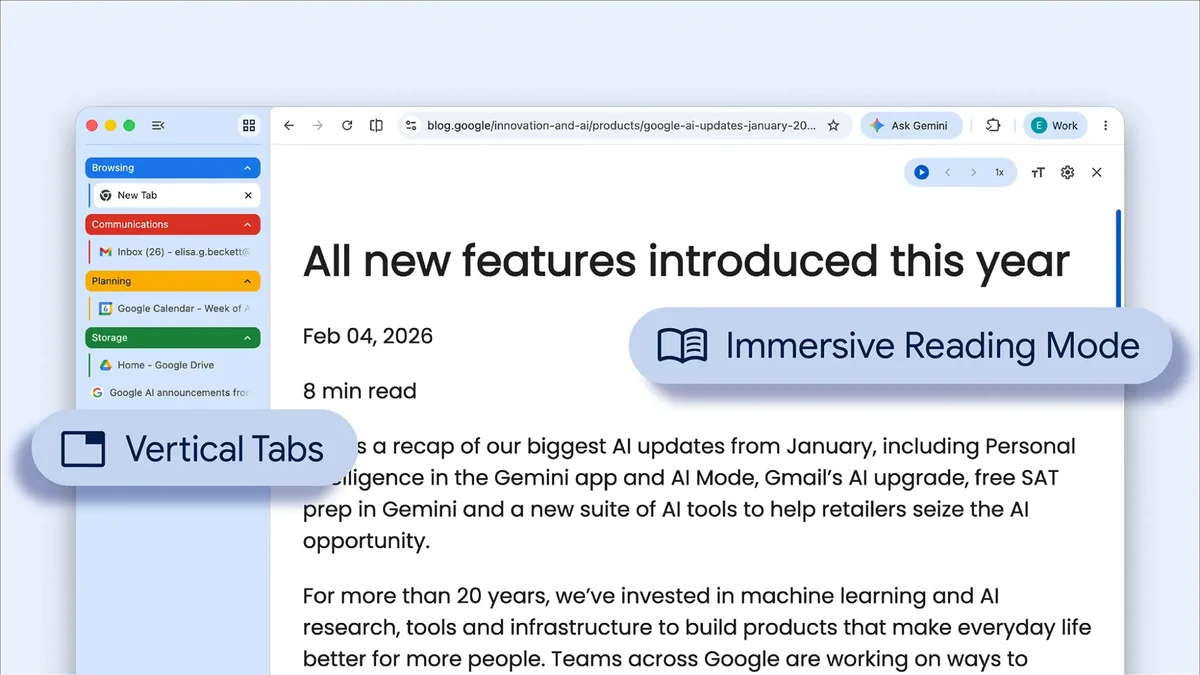
One of the most practical improvements in Chrome 157 is the ability to automatically expand a collapsed vertical tab bar when you move your mouse or trackpad over it.
Imagine working with 15 or 20 open tabs. A narrow tab bar saves screen space, but it can make page titles difficult to read.
With the new hover behaviour, the collapsed tab rail temporarily expands. You can read full page titles, switch between tabs and manage tab groups. When you move the pointer away, the rail retracts.
Why it matters:
- You can identify open pages more easily.
- You do not need to keep the entire tab bar expanded.
- Switching between multiple tasks becomes more convenient.
The feature is enabled by default and can be managed through the browser’s appearance settings.
2. You Can Resize the Vertical Tab Bar
Chrome 157 also introduces manual resizing for the vertical tab bar.
Previously, longer website titles could be difficult to read when the tab area was narrow. Now, users can adjust its width to display more of each page title.
The browser remembers the selected width across restarts and new windows when automatic hover expansion is turned off.
Why it matters: People who research, write, manage projects or work with several websites at once can organise their browser workspace more comfortably.
3. Chrome Settings Pages Get Their Own URLs
Another useful improvement is the ability to access individual Chrome Settings pages through direct URLs.
For example, you can type:
chrome://settings/appearancechrome://settings/privacy
This makes it easier to open a particular settings section without navigating through multiple menus.
The browser’s Back and Forward buttons also work when moving between Settings pages.
Why it matters: If you regularly change browser settings, direct links can save time. You can also bookmark useful settings pages for quick access.
4. Screen Sharing Gets a Persistent Control Bar
Online meetings often require users to share browser tabs. However, switching tabs or stopping screen sharing can sometimes involve unnecessary navigation.
Chrome 157 introduces a persistent control bar when a browser tab is being shared during video calls.
The bar provides options to:
- Stop sharing the current tab.
- Switch to another tab for sharing.
This is particularly useful for people who use Google Meet for remote work, presentations, online demonstrations or client meetings.
5. The Save As Dialog Becomes More Flexible
The fifth major feature concerns saving files.
Chrome 157 enables the system’s native Save As file dialog by default for explicit save actions such as:
- Save link as
- Save image as
- Save page as
This gives users more control over file names and destination folders. Supported locations can include Google Drive and external storage.
Why it matters: Users can organise downloaded content more easily instead of repeatedly searching for files saved in the default download folder.
22 Additional Improvements in Chrome 157
Alongside the five major features, Chrome 157 includes 22 smaller improvements. These focus mainly on bookmarks, vertical tabs, the address bar, PDFs and everyday browser behaviour.
Here are some notable changes:
| Area | Improvement |
|---|---|
| Bookmarks | Right-click menus work more reliably |
| Fullscreen | Bookmarks bar visibility improves when switching tabs with vertical tabs enabled |
| Screen sharing | Bookmark clicks work more normally during presentations |
| Pinned tabs | Hover preview cards work more consistently |
| Vertical tabs | Improved scrollbar alignment |
| Settings | Theme changes no longer reset the current Settings page |
| Launcher | New Window shortcut added to Chrome’s launcher menu |
| Google Slides | External monitor selection restored for presentations |
| Sign-in | Third-party Google Sign-In prompts can be dismissed more reliably |
| PDFs | Partial Translate option appears when selecting PDF text |
| Downloads | Downloaded PDFs can open directly in a Chrome tab |
| Picture-in-Picture | Media controls behave more consistently |
| Web apps | Improved installation and back navigation |
| Address bar | Standard desktop text-editing menu appears on right-click |
| Keyboard | Ctrl + L selects the complete URL, including parameters |
| Privacy | Contextual Search displays a less intrusive privacy notice |
| Stability | Improvements to extensions, shortcuts and managed browser policies |
These smaller changes may not look dramatic individually, but together they aim to make browser interactions more predictable.
Is Chrome 157 Available on Every Chromebook?
Not necessarily.
This is an important distinction for readers. Chrome 157’s desktop stable release was announced for Windows, Mac and Linux. Google’s ChromeOS release notes separately listed ChromeOS devices on browser version 156 in the November 13 stable update.
The Googlebook-specific changelog describes its own set of improvements. Therefore, users should not assume that every Chromebook or every ChromeOS device receives all the Googlebook changes at the same time.
Availability can depend on the device, operating system, software channel and rollout schedule.
For general Chrome browser updates, users can follow the official Chrome Releases blog.
How to Get the Latest Chrome Update
If you use Chrome on a supported desktop computer, you can check for updates manually:
- Open Google Chrome.
- Click the three-dot menu in the top-right corner.
- Open Help.
- Select About Google Chrome.
- Allow Chrome to check for available updates.
- Restart the browser if an update is installed and a restart is requested.
For ChromeOS and Googlebook devices, check the device’s system update settings and follow the update instructions provided for your device.
You can also visit Google’s Chrome Help Centre for browser guidance.
Who Will Benefit Most from These Changes?
Not every user needs all 27 improvements. However, several groups may find the update particularly useful.
Remote workers: The persistent screen-sharing control bar can make browser-based presentations easier to manage.
Students and researchers: Resizable vertical tabs and direct Settings URLs can improve everyday browser organisation.
Content creators: Better file-saving controls and PDF handling can simplify routine content work.
People who multitask: Hover-to-expand tabs can make it easier to manage many open pages without permanently sacrificing screen space.
Final Verdict: Are the Chrome 157 Improvements Worth It?
Chrome 157 is not simply about adding flashy features. Its strongest improvements focus on making everyday browser tasks smoother.
Vertical tab expansion, adjustable tab width, direct Settings URLs, screen-sharing controls and a more flexible Save As dialog are practical changes that address common workflow problems.
The additional 22 improvements also show Google’s attention to smaller usability issues, including bookmarks, PDFs, address-bar controls and web apps.
The biggest value of Chrome 157 is not one dramatic new feature, but the collection of small improvements that can make everyday browsing more comfortable and productive.
If your device supports the update, checking its availability is worthwhile. Just remember that Googlebook-specific changes should not automatically be assumed to apply to every Chromebook.