AI image design tools can turn a written description into a picture, or help you change a picture you already have. That can help bloggers, small businesses and creators. The hard part is choosing a tool that fits your job and checking the result before you use it.
This beginner’s guide to AI image design tools explains what they can do, looks at two examples, and gives you a simple way to compare them. It is based on official help and product pages, not on hands-on testing, so it does not rank the tools.
Quick answer: Pick one real task first. Then try it in a tool, check the editing options, read the usage terms and look at the cost. A tool that works for a blog graphic may not suit a product photo or a client project.
What Can AI Image Design Tools Do?
Features of AI image design tools differ from one product to another. Common jobs include:
- Text to image: You describe a scene, and the tool creates a new picture.
- Photo editing: You upload an image and ask for a change.
- Targeted edits: You change one part of an image, such as an object or the background.
- Reference images: You use an existing picture to guide style or layout.
These features can speed up early ideas. You still decide whether the picture is accurate, suitable and ready to publish.
2 Examples of AI Image Design Tools
The details below come from the companies’ own pages, checked on November 28, 2026. Features, limits and availability can change.
Gemini Apps
According to Google’s Gemini Apps Help, you can create images from a prompt or template, upload an image to edit, combine multiple uploaded images and make local edits to specific areas. You need to sign in, and availability depends on supported languages and countries.
Daily image limits apply. Google’s page lists a minimum age of 13, or the applicable age in your country, for creating images, and 18 for editing them. It lists downloads at 2K with a Google AI plan and 1K without one. Some redo options need a paid plan, and school accounts may have other restrictions.
Adobe Firefly
Adobe’s text-to-image page says Firefly creates images from text prompts, offers up to four suggestions per prompt and lets you use a result as a reference image. You can then edit a result, for example by removing objects or changing the background.
Firefly also offers models from other companies. Adobe says its own Firefly image models are trained on licensed Adobe Stock images and public domain content. For partner models, Adobe says you are responsible for deciding whether the output is suitable for your project. So check which model is selected before you create an image for business use. A free account includes daily generations, while paid plans offer higher use and more partner models.
| Question | Gemini Apps | Adobe Firefly |
|---|---|---|
| Create from text? | Yes | Yes |
| Edit images? | Yes, with age and other conditions | Yes |
| What to check first | Age rules, daily limit and download size | Selected model, daily limit and plan |
Other AI image design tools also exist. Compare them with the same questions, using their current official pages.
How to Choose AI Image Design Tools
To compare AI image design tools, use the same small test in each one you are considering. This makes the comparison fairer.
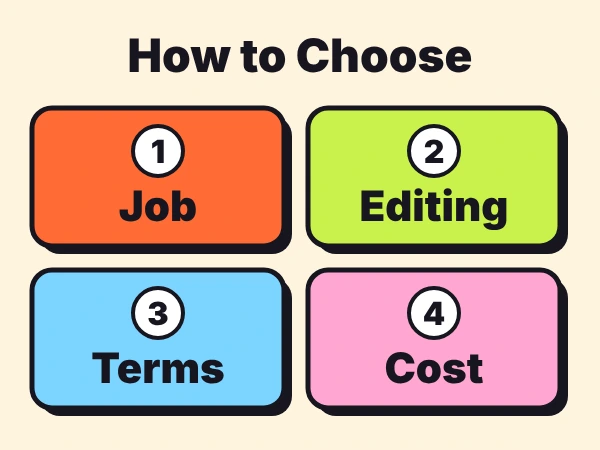
- Name the job. For example: a blog header, a social post or a concept sketch.
- Test the editing. Ask for one small change and see whether the rest of the image stays as you wanted.
- Read the terms. Check commercial use, uploads, privacy and any rules about people or brands.
- Check size and cost. Look at download size, usage limits and what happens when you reach them.
Write a Clear Prompt for Better Results
A short, clear brief gives AI image design tools more direction. Include the subject, purpose, style, layout, colors and anything to avoid.
Prompt template: Create a [image type] for [purpose]. Show [main subject] in a [style] style. Use [colors]. Keep the main subject in the center and leave space around the edges. Do not include logos, brand names or text.
If you need the same image in several shapes, plan for that before you generate it. Our guide explains how to create an image brief that survives cropping.
For headings or prices, consider adding the text yourself in a design editor. It is easier to correct, and you control the spelling and placement.
Check Images From AI Design Tools Before Publishing
An image can look polished and still contain mistakes. View it at full size, then at the size your readers will see.
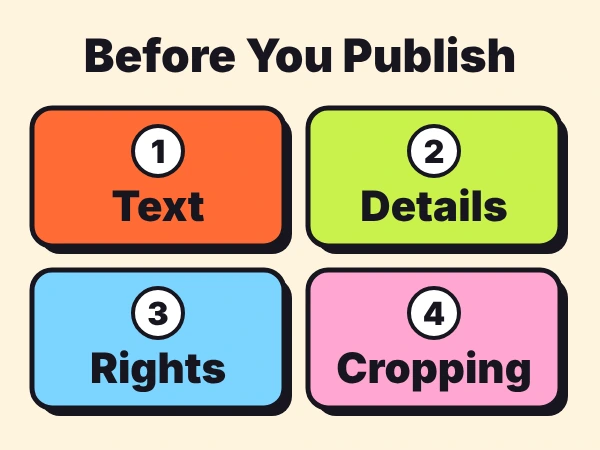
- Text: Check every word, number and label.
- Details: Look closely at hands, faces, objects, reflections and edges.
- Truthfulness: Don’t present a generated picture as a real photo of an event, customer or product.
- People and brands: Get the permissions you need, and avoid suggesting an endorsement that doesn’t exist.
- Cropping: Preview the image on desktop and mobile.
Copyright and Commercial Use
Permission to use an image and copyright protection are two different questions. The terms for AI image design tools may cover how you can use its output, but they don’t settle every legal issue.
In the United States, the U.S. Copyright Office concluded in January 2025 that human authorship is required for copyright protection. It said prompts alone are not enough. Human-authored material that remains recognizable in the output, or creative arrangements and changes made by a person, may qualify. Using AI as an aid does not by itself rule out protection.
Rules differ between countries. For client work, advertising or other important commercial uses, check the current terms and get qualified advice when needed.
Frequently Asked Questions About AI Image Design Tools
Are these tools free?
Some offer free access with limits. Adobe’s page mentions free daily generations, and Google’s page describes daily limits and some paid options. Check the current plan before you rely on either one.
Can they replace a designer?
They can help with ideas and simple visuals. Work such as brand identity, detailed layouts or important campaigns may still need a skilled designer.
Can I use the images for my business?
It depends on the tool, the model, your inputs and what the image shows. Read the current terms and check people, brands and other protected material.
Bottom Line
The best way to compare AI image design tools is to test them on your own task. Write a clear brief, try one edit, read the terms and review the final image carefully. For more guides, visit our AI Image & Design Tools section.
Information checked on November 28, 2026. This is general information, not legal advice. TechAndWealth did not conduct hands-on performance testing for this guide.