You don’t need to be a professional graphic designer to create attractive social media posts, presentations, marketing materials, or videos. Once you know how to use Canva, you can turn simple ideas into professional-looking designs using ready-made templates and easy editing tools.
Whether you’re a student, content creator, small business owner, blogger, or digital marketer, learning how to use Canva can help you communicate ideas visually, build a consistent brand, and save time.
- How to use Canva to create an account and start your first design
- How to choose and customize templates
- What you can create with Canva
- How Canva AI features can support your creative work
- How to choose between Canva Free and paid plans
Canva makes visual design more accessible. Start with one simple project, learn the editor, and gradually explore its templates, design tools, and AI-powered features.
What Is Canva?
Canva is an online visual communication and design platform that helps people create graphics and other digital content without needing advanced design software.
A big part of knowing how to use Canva is working with templates. Instead of building every design from scratch, you can start with a template, replace its text and images, adjust the colors, and customize the layout for your needs.
Canva is useful for individuals, students, creators, educators, and businesses that need to produce visual content regularly.
Social Media Graphics
Create posts, stories, promotional graphics, and branded content for social platforms.
Presentations
Prepare business presentations, pitch decks, educational slides, and project reports.
Videos and Thumbnails
Design short videos, promotional clips, and YouTube thumbnail graphics.
Marketing Materials
Make flyers, brochures, menus, posters, business cards, and other promotional designs.
How to Use Canva: Getting Started
The easiest way to learn how to use Canva is to practice. You can begin with a free account and explore the editor before deciding whether you need additional features.
Step 1: Create a Canva Account
Visit Canva.com and sign up using one of the available registration options. Once you sign in, you’ll reach the Canva homepage, where you can search for templates, browse design categories, and start a new project.
Step 2: Choose What You Want to Create
Think about the purpose of your design before selecting a format. For example, you might need an Instagram post, a business presentation, a YouTube thumbnail, a flyer, or a resume.
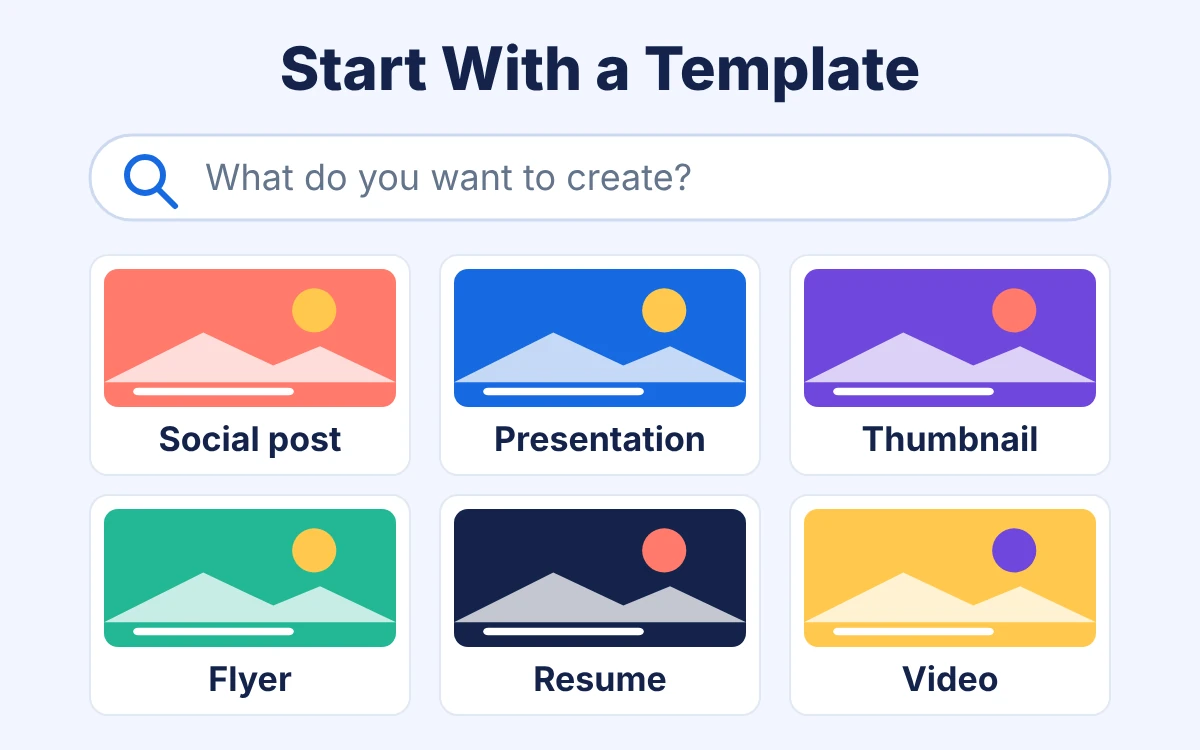
Step 3: Select a Template
Search for the type of design you need and browse the available templates. Choose a layout that suits your message and audience. A template provides a starting point, but you should customize it rather than using it without reviewing the details.
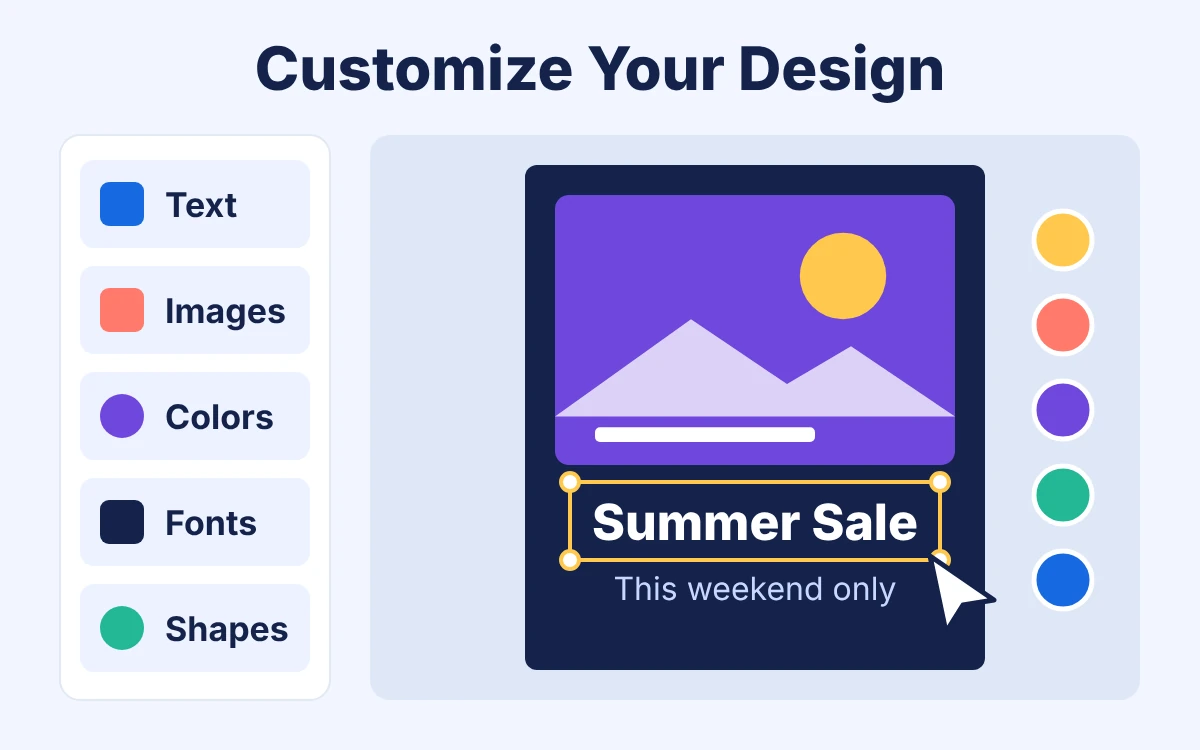
Step 4: Customize Your Design
Replace the sample text and images with your own content. You can change fonts, colors, backgrounds, illustrations, shapes, and the position of different elements.
Keep the layout clear and make sure the most important information is easy to notice. Avoid using too many fonts, colors, or decorative elements in one design.
Step 5: Download or Share Your Design
When your design is ready, use Canva’s sharing or download options. Select a suitable file format based on how you plan to use the finished project.
| Format | Common use |
|---|---|
| PNG | Social media graphics and images that need crisp details or transparency |
| JPG | Photographs and smaller image files |
| Documents, reports, presentations, and print materials | |
| MP4 | Videos and animated content |
7 Useful Things You Can Create With Canva
1. Social Media Posts
Create content for Instagram, Facebook, LinkedIn, and other social platforms. You can design educational posts, product highlights, announcements, promotional graphics, and branded content.
2. YouTube Thumbnails
Create video thumbnails using images, shapes, and readable headings. A good thumbnail should communicate the video’s subject clearly without overcrowding the design.
3. Business Presentations
Prepare pitch decks, business proposals, educational presentations, and project reports. Use charts, graphics, and visual elements to make information easier to understand.
4. Marketing Materials
Small businesses can create flyers, brochures, menus, posters, and promotional designs. Consistent colors and fonts help maintain a recognizable visual identity.
5. Educational Resources
Teachers, students, and trainers can create worksheets, lesson materials, diagrams, certificates, and presentations.
6. Short Videos
Canva includes video design and editing features that can help creators prepare promotional videos, social media clips, and animated presentations.
7. Documents and Reports
Combine text, images, charts, and design elements to create visual documents, reports, and other informative materials.
How to Use Canva AI to Design Faster
Canva has expanded its AI-powered creative features to help users generate ideas, create designs, edit content, and refine visual projects. The exact tools and usage allowances depend on the plan and feature availability.
Canva AI
Canva AI lets users describe what they want to create and use conversational assistance to develop or refine designs. Its capabilities can include creating presentations, social posts, images, and other visual content.
Magic Write
Magic Write can help generate, rewrite, or improve text for presentations, documents, and other creative projects. Review the output carefully before publishing.
Magic Resize
Where available in your plan, resizing tools can help adapt a design to different dimensions and formats. Always review the layout after resizing because text and images may need adjustments.
Background Removal and Image Editing
Canva provides image-editing features that can help remove backgrounds or make visual adjustments. Availability may depend on your subscription and the specific tool.
AI Image and Design Generation
Canva AI can help users generate images, design concepts, and other creative elements from prompts. Generated content should be reviewed for accuracy, quality, and appropriate usage rights.
Canva Free vs. Paid Plans: Which Should You Choose?
Canva offers a free plan as well as paid options with additional content, tools, and features. Beginners can start with Canva Free and upgrade only when they identify a feature they genuinely need.
| Feature | Canva Free | Paid plans |
|---|---|---|
| Basic design editor | Available | Available |
| Templates and design assets | Free selection | Additional premium content |
| AI tools | Limited access to selected features | Higher access depending on plan |
| Brand management | Basic options | More brand and team features |
| Advanced editing tools | Some limitations | More tools, depending on plan |
| Collaboration | Basic sharing | Expanded team features on eligible plans |
Paid plans may include premium templates and assets, additional AI usage, brand-management features, and other advanced capabilities. The available features vary across Pro, Pro Lite, Business, and other plan types.
Once you know how to use Canva for your own projects, you can judge which features you need. For current plan names, pricing, and feature limits, visit Canva’s official pricing page.
How to Use Canva Better: 5 Practical Tips
01. Keep It Simple
A clean layout is usually easier to understand than one filled with unnecessary elements.
02. Use Consistent Colors
Choose a small color palette that matches your brand or project.
03. Choose Readable Fonts
Use clear fonts for important information, especially when people view designs on mobile screens.
04. Use Quality Visuals
Images and illustrations should support your message rather than distract from it.
05. Review Before Publishing
Check spelling, spacing, alignment, dimensions, and image quality before downloading.
Common Canva Mistakes Beginners Should Avoid
- Using too many fonts: Limit font combinations to maintain a consistent appearance.
- Overloading the layout: Leave enough empty space so the design can breathe.
- Ignoring mobile readability: Check whether text is readable at the size people will actually see it.
- Using unlicensed assets: Review the licensing and usage terms for images, fonts, music, and other assets.
- Publishing without checking: Review the final export for mistakes, missing elements, and incorrect dimensions.
Is Canva Good for Beginners?
Yes. Learning how to use Canva does not require professional graphic-design experience. Canva is designed to make visual creation accessible to everyday users. Its templates and drag-and-drop editor make it easier to start, while its advanced features provide room to learn and improve.
However, using a template does not automatically make every design effective. Understanding basic design principles—such as hierarchy, contrast, spacing, and readability—will help you create better results.
Frequently Asked Questions
1. Can I use Canva for free?
Yes, and you can learn how to use Canva without paying. Canva offers a free plan that allows users to create many types of designs. Some premium assets and advanced features require a paid plan.
2. Do I need graphic-design experience to use Canva?
No. Beginners can start with templates and the drag-and-drop editor. Learning basic design principles will help improve the quality of your work.
3. Can I use Canva on my phone?
Yes. You can also learn how to use Canva on mobile, because Canva provides mobile applications, allowing users to create and edit designs on supported smartphones and tablets.
4. Can I use Canva for business purposes?
Canva can be used for many business design tasks. However, users should review the applicable content licensing and usage terms for the assets and features they use.
5. Does Canva have AI features?
Yes. Canva offers AI-powered tools for writing, design generation, image creation, and editing. Access and usage limits depend on the feature and subscription plan.
6. Is Canva better than professional design software?
It depends on the project. Canva is convenient for quick visual content, presentations, and marketing materials. Complex professional design work may require specialized software and more advanced workflows.
Want to read more? Browse our AI image and design tools guides on TechAndWealth.
Final Thoughts
Learning how to use Canva can be a valuable digital skill for students, creators, entrepreneurs, and small business owners.
You can start with simple social media graphics and gradually move toward presentations, marketing materials, videos, and more advanced visual projects.
The best way to learn how to use Canva is by creating something useful. Choose one project, experiment with the available tools, review your design, and keep improving.
Visit Canva, choose a simple design, and create your first project today. Practice is the easiest way to become more confident with the platform.
Official Canva Resources
Disclaimer: This article is for educational purposes. Canva’s product features, AI capabilities, plan availability, pricing, and licensing terms may change. Always check the official Canva website for current information.